Before you start
- Desktop Discord only. The plugin runs inside the Discord desktop app on Windows, macOS or Linux. It can do nothing in a browser tab.
- Only the people watching need it. Whoever is streaming does not have to install anything.
- It is unofficial. Client modifications are against Discord's terms of service. Enforcement against plugin users is effectively nonexistent, but a Discord update can break the plugin until it is fixed, and none of this is affiliated with Discord.
- Vencord and BetterDiscord cannot coexist. Both patch the same Discord file. If you use Vencord, either uninstall it first or build the Vencord version instead (below).
Install BetterDiscord
- Download the installer from betterdiscord.app.
- Run it, choose Install, pick your Discord (Stable, unless you use another), and let it patch Discord.
- Restart Discord when it asks. It worked when Discord's settings gain a BetterDiscord section in the left sidebar.
Add the plugin
- Download
StreamWindows.plugin.jsfrom the download page. If it arrives inside a zip, unzip it: you need the.jsfile itself, with its name unchanged. - Open the plugins folder: in Discord, Settings → Plugins → Open Plugins Folder. It is
%APPDATA%\BetterDiscord\pluginson Windows,~/Library/Application Support/BetterDiscord/pluginson macOS and~/.config/BetterDiscord/pluginson Linux. - Drop the file in that folder.
- Switch it on: back in Settings → Plugins, find StreamWindows and flip its toggle. No restart needed.
Pop out a stream
Join a voice channel in which someone is streaming. You have to be connected to that channel; you do not have to be watching the stream already. Then right-click the streamer, in the channel's member list or on their video tile, and choose Pop Out Stream to Window from the StreamWindows entries at the end of the menu.
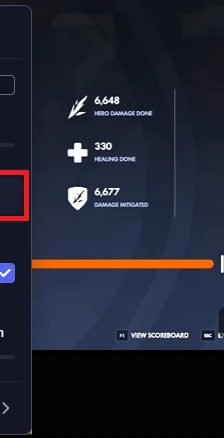
The window opens about a second and a half later: the plugin first asks Discord to add the stream to what you are watching, without stealing focus from anything else you have open, and waits for the video to start decoding; a window opened before that would show the streamer's avatar instead of their video. The new window is an ordinary window: move it to another monitor, resize it, maximize it. Discord remembers each streamer's window position and size and uses them next time.
While a stream's window is open, the menu entry reads Stream Window Open and two more appear under it: Toggle Fullscreen and Close Stream Window. Closing the window with its own close button works just as well.
The window controls
Move the pointer over a stream window and the controls fade in at the bottom left.
- The speaker button mutes and unmutes that stream; it turns blue while muted. This is Discord's own per-stream mute, the same one in Discord's right-click menu, so the two agree.
- The volume slider appears above the speaker button while the pointer is over it: vertical, from 0 to 200%, with the percentage under it. Drag it, or scroll on it. Again this is Discord's own stream volume.
- The fullscreen button (⛶) fills the monitor the window is on; the same button, or double-clicking the video, brings it back. Fullscreen also hides the title bar entirely.
- The title bar is hidden until you hover the window, so the video runs edge to edge; the minimize, maximize and close buttons sit on a dark strip at the top right, and the top edge can still be dragged to move the window. The buttons Discord adds to its own pop-outs (Stay On Top, Zoom In and Zoom Out) are hidden, because they do nothing useful for these windows.
Several streams
Repeat the right-click for each streamer; every stream gets its own window. To open them all at once, open Discord's console with Ctrl+Shift+I and run $sw.popAllInConnectedChannel(), which pops out every stream in the channel you are connected to, half a second apart. The Vencord build offers the same as the /streamwindows slash command; BetterDiscord has no command API, so there it stays in the console.
Updating
BetterDiscord updates only the plugins published in its own store, so StreamWindows looks after itself. Each time Discord starts, the plugin fetches the current file from the download repository on GitHub and compares versions. When a newer one exists, a dialog says so: Update replaces the installed file, and BetterDiscord reloads it on the spot; Later asks again next time. When nothing is new, or the check fails because you are offline, nothing is shown.
To check by hand, run $sw.checkForUpdates() in the console, which reports its result as a toast either way. Replacing the file yourself with a fresh download works too.
Troubleshooting
- There is no StreamWindows entry in the menu. The person is not streaming, you are not connected to the voice channel they are streaming in, or the plugin is switched off under Settings → Plugins. The entry is greyed out when you are connected to a different voice channel.
- The window shows an avatar instead of the video. The stream had not started decoding when the window opened, usually right after the streamer went live. Close the window and pop it out again.
- The controls are missing. They fade in only while the pointer is over the window. If Discord redrew the window's contents, they are put back within a couple of seconds.
- BetterDiscord vanished after a Discord update. Discord's updater sometimes replaces the patched file. Run the BetterDiscord installer again and choose Repair or Install; your plugins and settings are kept.
- The plugin stopped working after a Discord update. It relies on Discord's internal modules, which change from time to time. Run
$sw.checkForUpdates(), or look at the source repository for news. A plain report on the support page helps: what you clicked and what happened, and the tail of the log described next. - Where the log is. The plugin writes a
StreamWindows.logfile next to itself in the plugins folder, rewritten each session, with everything it did and every module it looked up. It never leaves your computer.
Uninstalling
To remove just the plugin, switch it off under Settings → Plugins or delete StreamWindows.plugin.js from the plugins folder; open stream windows close with it. To remove BetterDiscord altogether, run its installer and choose Uninstall, which restores the unmodified Discord.
For Vencord users
The same code builds as a Vencord user plugin, but Vencord compiles user plugins into its own build and has no way to load one at runtime, so an ordinary Vencord install has no folder to drop it into. Running it under Vencord means building Vencord from source, with Node 20 or newer, pnpm and git:
- Clone Vencord and install its dependencies:
git clone https://github.com/Vendicated/Vencord, thenpnpm iinside it. - Clone the plugin next to it:
git clone https://github.com/relyTzzz/DiscordPlugin, and link it into Vencord's user plugins withnode scripts/link-into-vencord.mjs <path to the Vencord checkout>. - Build and inject from the Vencord folder:
pnpm build, thenpnpm injectwith Discord fully quit. - Enable it under Settings → Vencord → Plugins, as StreamWindows. It also adds the
/streamwindowscommand.
Vencord has its own updater, so the Vencord build does not check for updates itself; rebuild after pulling changes.
Known limits
- No always-on-top and no picture-in-picture. Every route a plugin can reach was tried: Discord's own always-on-top flag does nothing for these windows, the pop-out exposes no native window API, and the browser's picture-in-picture API refuses to work inside a pop-out. Keeping a window above everything else needs a native component, which is a different project.
- The controls do not follow changes made elsewhere. Changing a stream's volume or mute in Discord's own menu is not reflected on the overlay until you use it again.
- A window outlives its stream. When the streamer stops, the window stays until you close it.
- Slash commands are Vencord-only. On BetterDiscord, use the context menu or the console helpers on
$sw.